
Tutorial: Detection Enrichment App
Build a UI extension that enriches Falcon detection details with third-party geolocation data — without writing any code. This tutorial uses the Extension Builder to create a detection panel that displays IP address location information directly within the Next-Gen SIEM endpoint detection details page.
Prerequisites
Section titled “Prerequisites”- Falcon Insight XDR or Falcon Prevent (one app)
- Falcon Next-Gen SIEM or Falcon Foundry (1+ apps depending on entitlement)
- Falcon Administrator and App Developer roles
- A free account with Abstract’s IP Geolocation API
Step 1: Create a Falcon Foundry App
Section titled “Step 1: Create a Falcon Foundry App”Log in to Falcon and go to Foundry > Home. Click Custom app and enter:
- App name:
IP Geolocation Enrichment - Description:
Extends detection details with Abstract's IP Geolocation API - Logo (optional): Add an image of your choosing (resize to 160×160 before uploading)
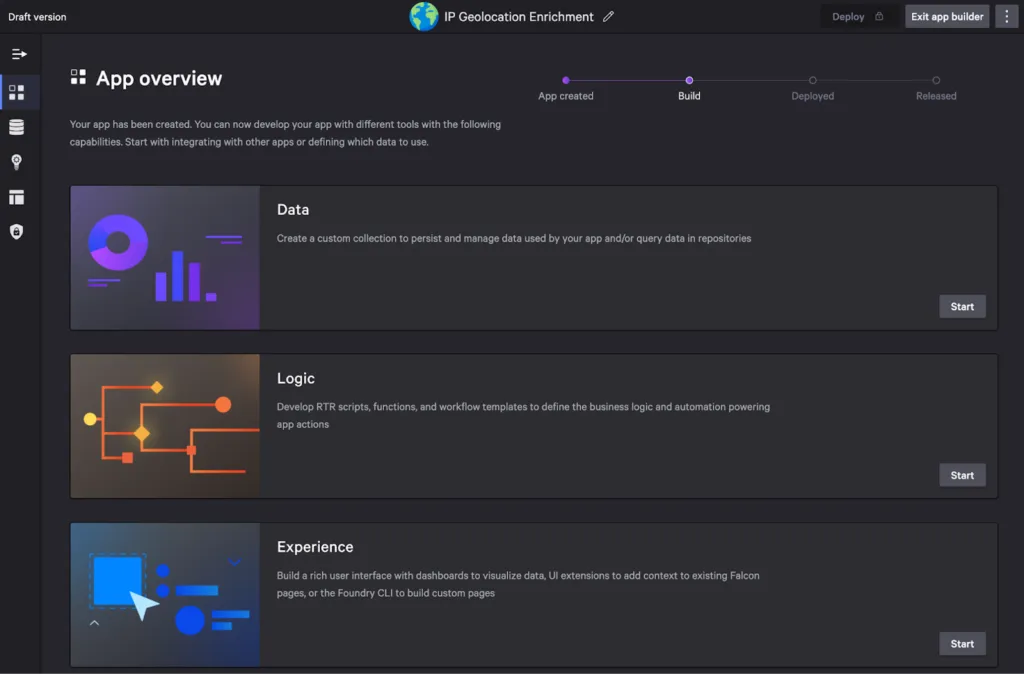
Click Create app. You’ll land on the App overview screen where you can add features. The interface is organized in three rows: data integrations, logic components, and UI elements.
Step 2: Add an API Integration
Section titled “Step 2: Add an API Integration”With an API integration, you define HTTP-based operations and then invoke these operations from your UI extension. Since Abstract doesn’t have an OpenAPI spec, you’ll create one manually.
Sign up for a free account with Abstract. In the Lookup section, click IP Geolocation to find your API key. You can test the API with curl:
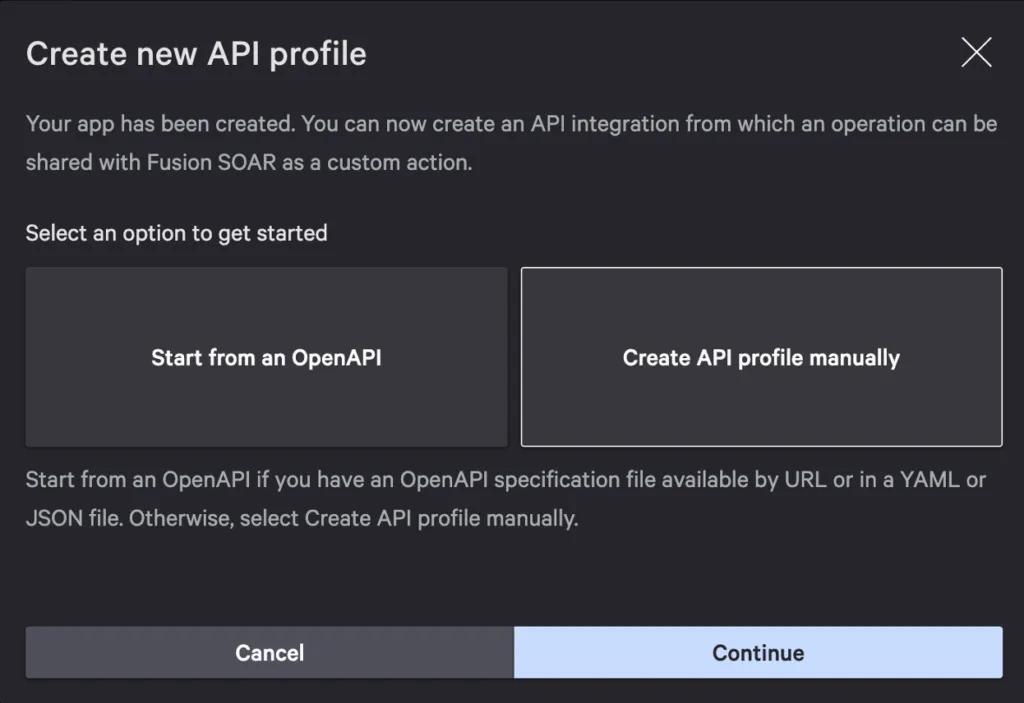
curl 'https://ipgeolocation.abstractapi.com/v1/?api_key={api-key}&ip_address={ip-address}'Click Start in the Integrations tile, then Create an API integration. Select Create API profile manually and click Continue.
Complete the API integration profile:
- API profile name:
Abstract Geolocation API - API profile description:
Abstract's IP Geolocation API is a fast, lightweight, modern, and RESTful JSON API that determines the location and other details of IP addresses from over 190 countries. - Host environment:
Cloud - Host protocol:
https - Host:
ipgeolocation.abstractapi.com - Auth type:
API key - API key parameter name:
api_key - API key parameter location:
query
Click Save API integration. Then click Create operation with:
- Operation name:
Get IP Location - Description:
IP Geolocation Information - Method:
GET - Path:
/v1/
Click Next. Select Add query parameter, use ip_address for the name, and click Save.
Step 3: Test the Operation
Section titled “Step 3: Test the Operation”Select Test from the left navigation menu and Create a temporary configuration named Abstract API Key with your API key value.
Enter an IP address in the params.query.ip_address input box and click Test operation. You should get an “Operation succeeded (200)” message.
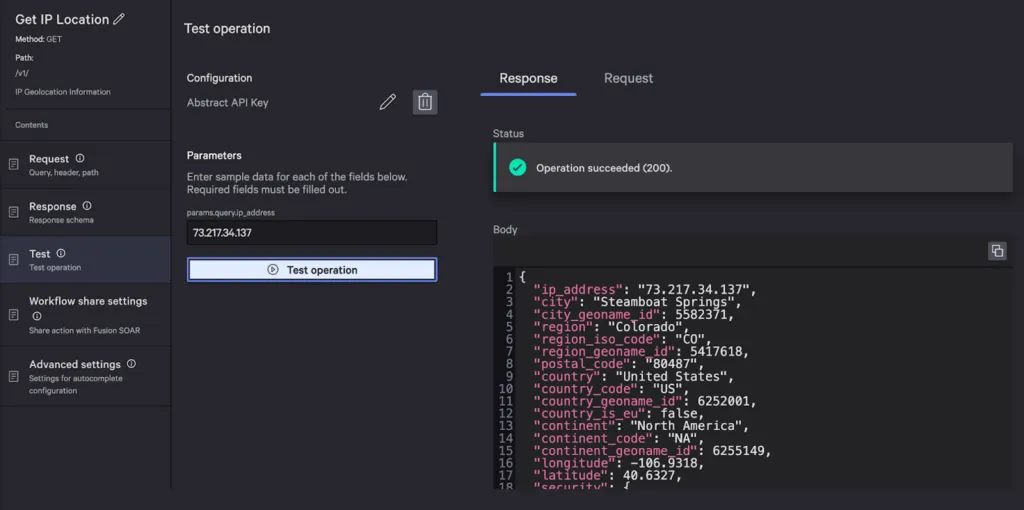
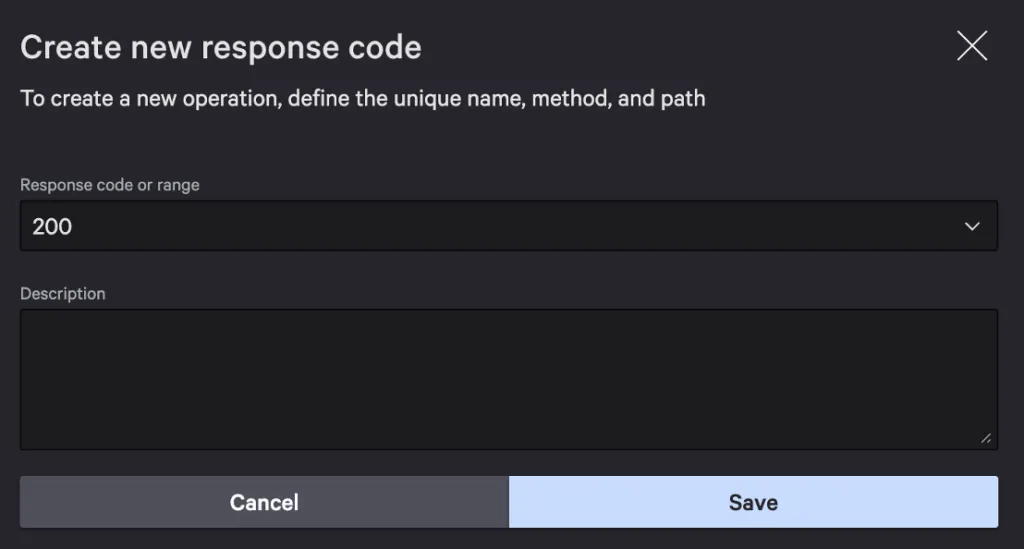
Copy the response body using the copy icon. Click Response and Create response code. Specify 200 for the code and click Save.
Click Response body > Generate schema and paste in the JSON response. Click Generate to create the response body schema.
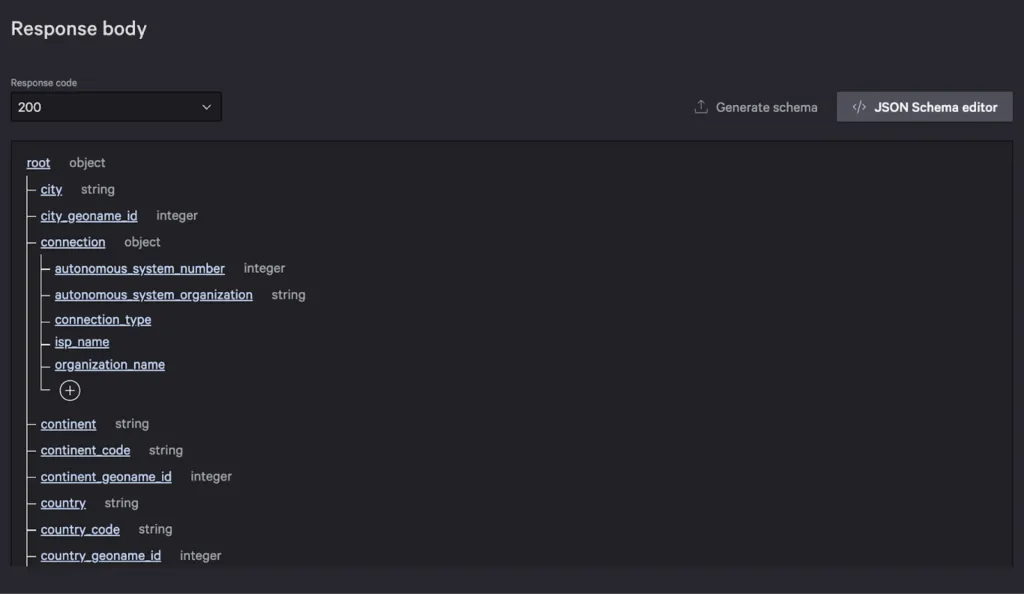
Click Done.
Step 4: Deploy Your App
Section titled “Step 4: Deploy Your App”Deploy your app to save your progress. From the integration details page, click Deploy. In the Commit deployment dialog, select Major and enter Added API integration for the description. Click Deploy.
Step 5: Add a UI Extension
Section titled “Step 5: Add a UI Extension”Go to Foundry > Home. Find your app under Recent apps and select Edit app. Scroll to the Experience tile and click Start. Click Create an extension with:
- Name:
IP Address Enrichment - Description:
Adds Geolocation data to Next-Gen SIEM detection details - Extension location in Falcon:
Endpoint detection details
Click Create.
Display the IP Address
Section titled “Display the IP Address”From the UI components tab, drag a Container from the Containers list and drop it into the canvas. Then drag a Text component from the Controls list into the container.
Configure the text properties:
- Color:
Titles and attributes - Font size:
sm - Display text: Enter
IP Address:and click Insert dynamic value
In the dialog, click the Data source dropdown. You’ll see two headings:
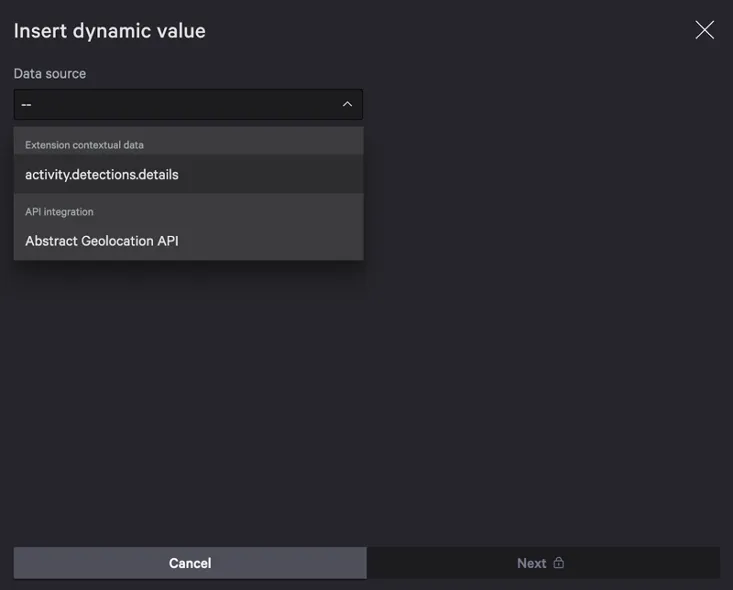
- Extension contextual data provides access to the detection metadata available on the page
- API integration provides access to data from Abstract’s API
Select activity.detections.details, click the Variables dropdown, search for “ip”, select Device, External_ip, and click Insert.
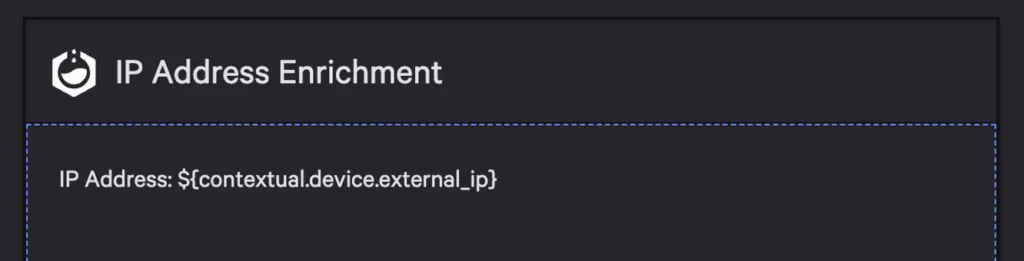
Display Geolocation Information
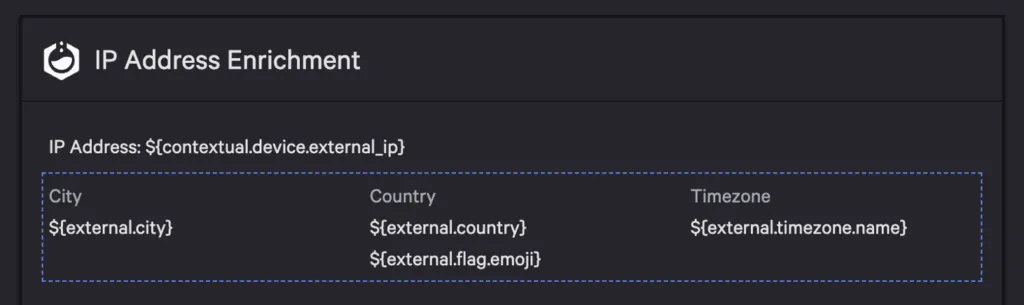
Section titled “Display Geolocation Information”Drag a Label value component from the Controls list and drop it below the IP address text. Change the labels to City, Country, and Timezone.
Insert dynamic value for City’s value, select Abstract Geolocation API and the Get IP Location operation. Select City and click Next.
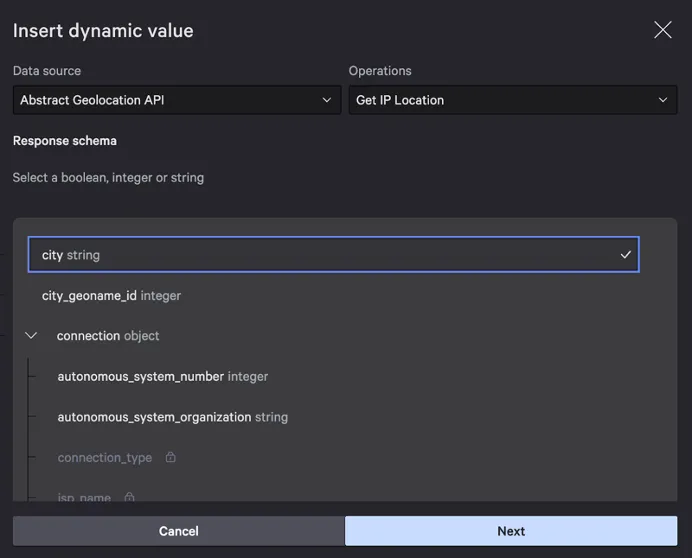
Enter ${contextual.device.external_ip} for the query.ip_address parameter and click Insert.
Repeat for Country and Timezone.
Click Save.
Step 6: Deploy, Release, and Install
Section titled “Step 6: Deploy, Release, and Install”From the Experience page, click Deploy with:
- Change type:
Major - Change log:
Add UI extension
After deployment succeeds, click Release with:
- Change type:
Major - Release notes:
App with IP Geolocation API integration
Click View in app catalog, then Install now. Acknowledge the app permissions and configure the Abstract API Key. Click Install app.
Step 7: Test Your App
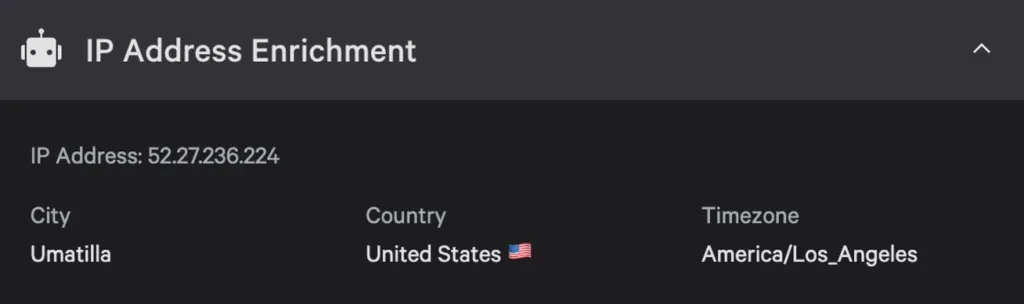
Section titled “Step 7: Test Your App”Go to Next-Gen SIEM > Detections. Click a detection to see its details. Scroll to the IP Address Enrichment section, click the title to expand it, and you should see geolocation information for the detection’s IP address.
Extend Your App
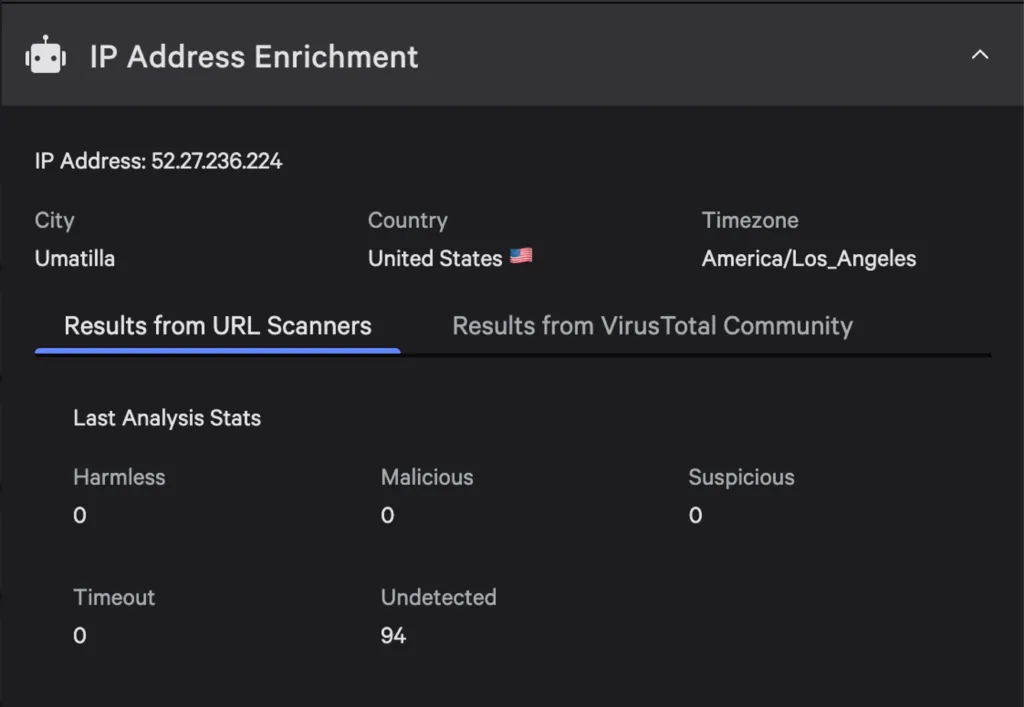
Section titled “Extend Your App”Consider extending your app with additional integrations. Foundry supports multiple API integrations in a single app, allowing you to add a tabbed interface with both geolocation and threat intelligence data.
Next Steps
Section titled “Next Steps”- API Integrations — Learn more about creating and configuring integrations
- UI Extensions — Explore all 13 socket types
- Collections — Cache lookup results for better performance