
Tutorial: Deploy an App Template
App templates are pre-built Foundry apps available in the Content Library. Deploy a template directly to get a working app in minutes, or clone it as a starting point for customization. This tutorial walks through deploying the Google Chat app template as an example.
Prerequisites
Section titled “Prerequisites”- Falcon Insight XDR or Falcon Prevent (one app)
- Falcon Next-Gen SIEM or Falcon Foundry (1+ apps depending on entitlement)
- Falcon Administrator and App Developer roles
- A Google Cloud account with Workspace Admin permissions
About Google Chat for Falcon
Section titled “About Google Chat for Falcon”Google Chat for Falcon is unique because it’s available as both an app template and a CrowdStrike Store app. This makes it a great example for understanding both deployment paths.
Configure Google Chat APIs on Google Cloud
Section titled “Configure Google Chat APIs on Google Cloud”Start by going to console.cloud.google.com. Select a project or create a new one named Google Chat. Once created, search for “google chat api”, select Google Chat API, and Enable it.
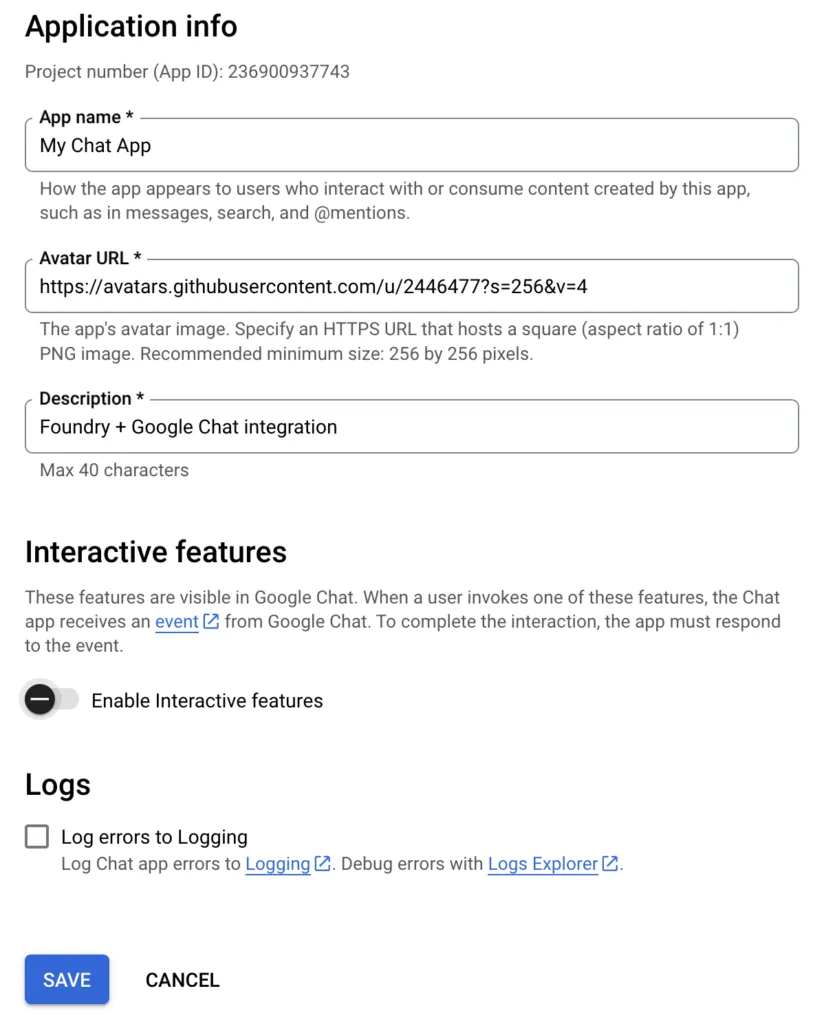
Select the Configuration tab and configure:
- Name:
My Chat App - Avatar:
https://avatars.githubusercontent.com/u/2446477?s=256&v=4 - Description:
Foundry + Google Chat integration
Disable Interactive features and click Save.
Go to Credentials > Create credentials > Service account with:
- Name:
Google Chat - ID:
google-chat - Description:
Service account for Google Chat + Foundry
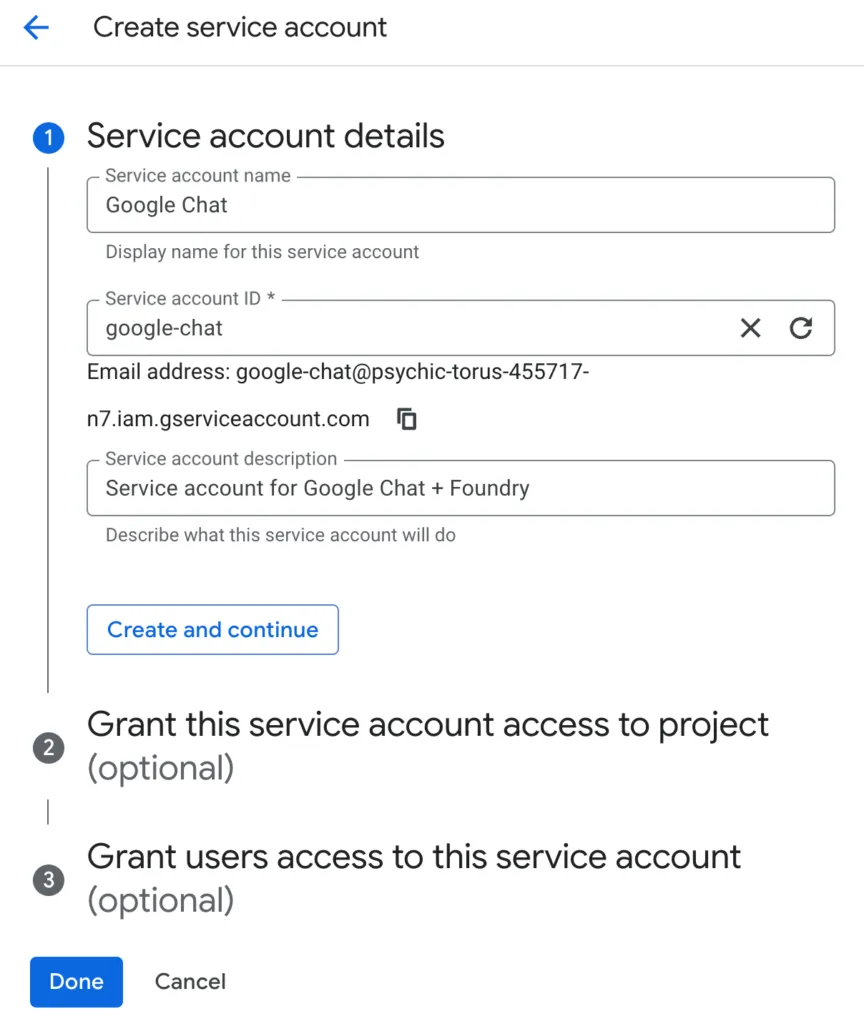
Click Create and Continue, then Done. Click the service account email, select the Keys tab, click Add key > Create new key, choose JSON, and save the file.
Go to the Details tab, expand Advanced settings, copy the Client ID, then navigate to Security > Access and data control > API Controls > Manage domain-wide delegation. Click Add New, enter the client ID, and add the required OAuth scopes. Click Authorize.
Step 1: Find the Template
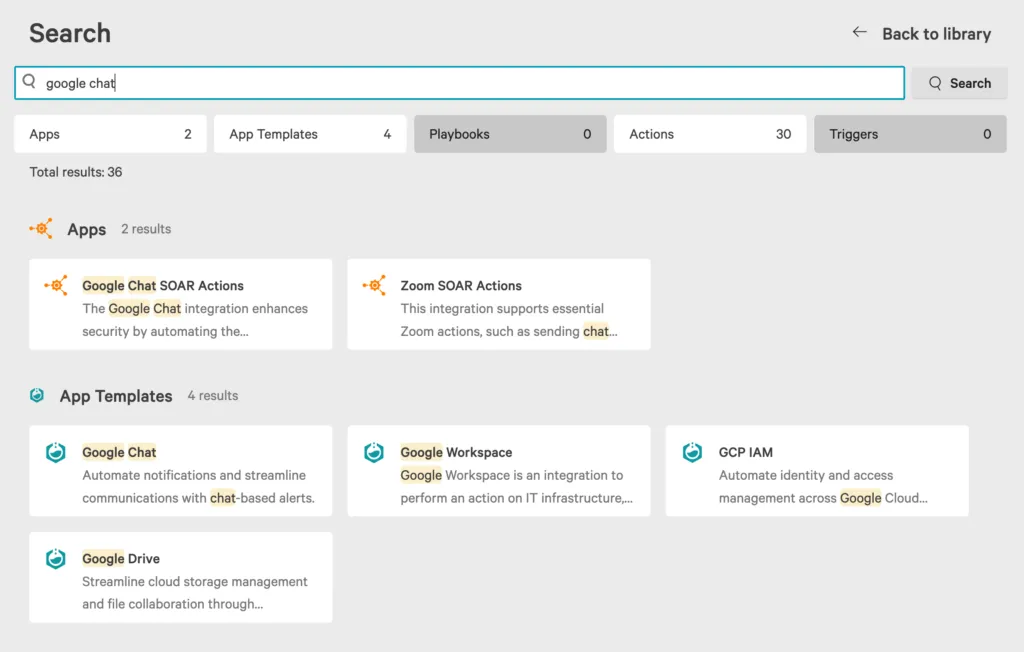
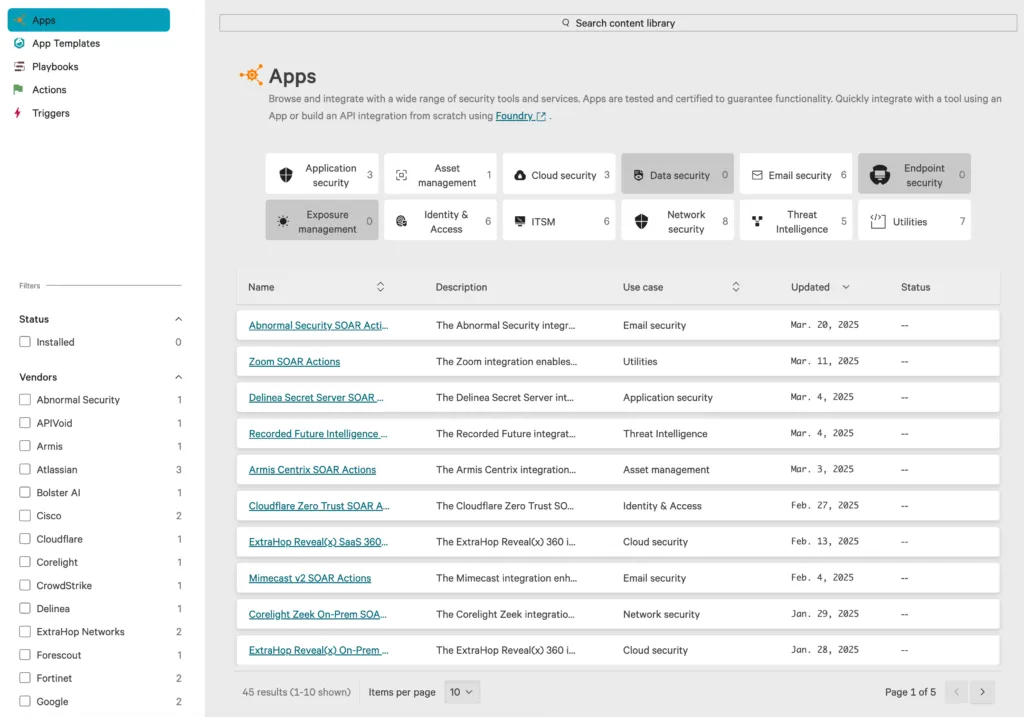
Section titled “Step 1: Find the Template”Log in to Falcon and go to Fusion SOAR > Content library. Search for “google chat”.
Step 2: Deploy the Template
Section titled “Step 2: Deploy the Template”Click the Google Chat tile under App Templates, then click Deploy in Foundry. This takes you to Foundry > Templates.
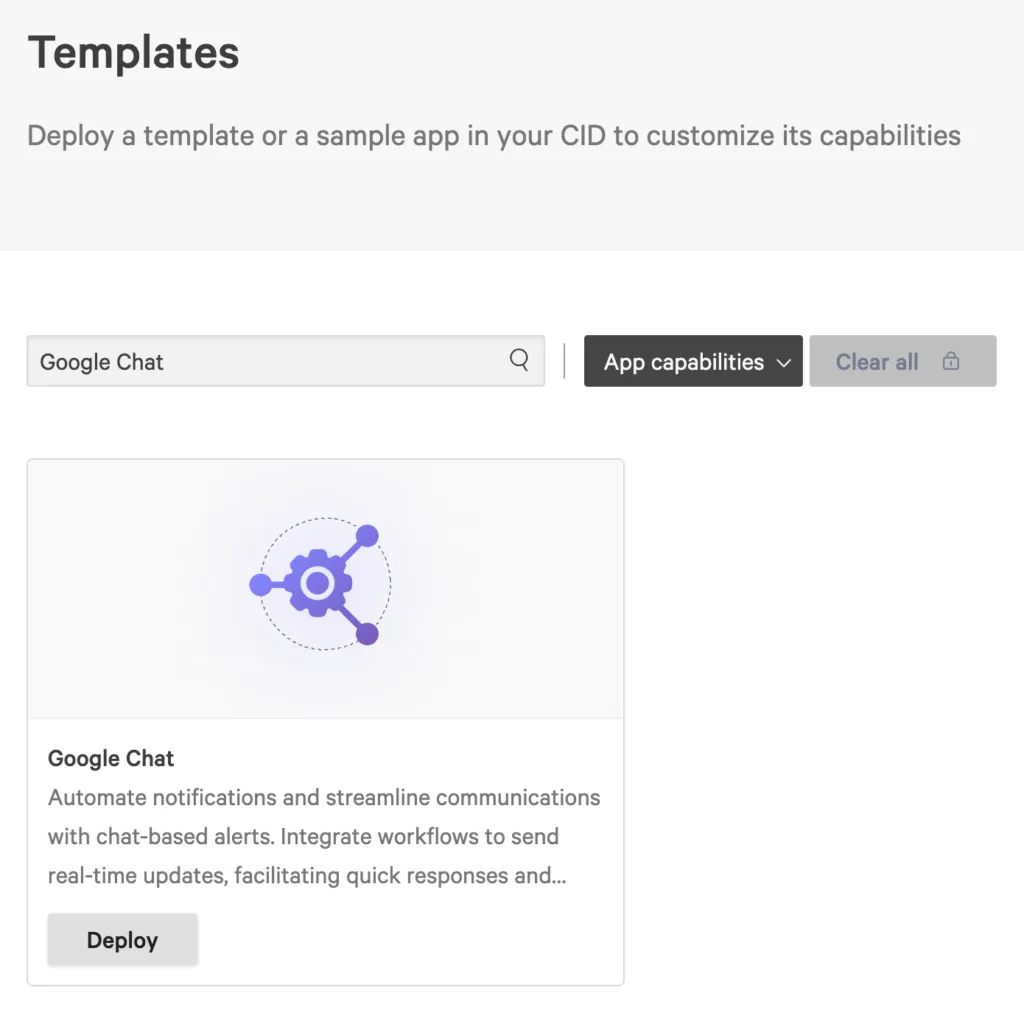
Click Deploy.
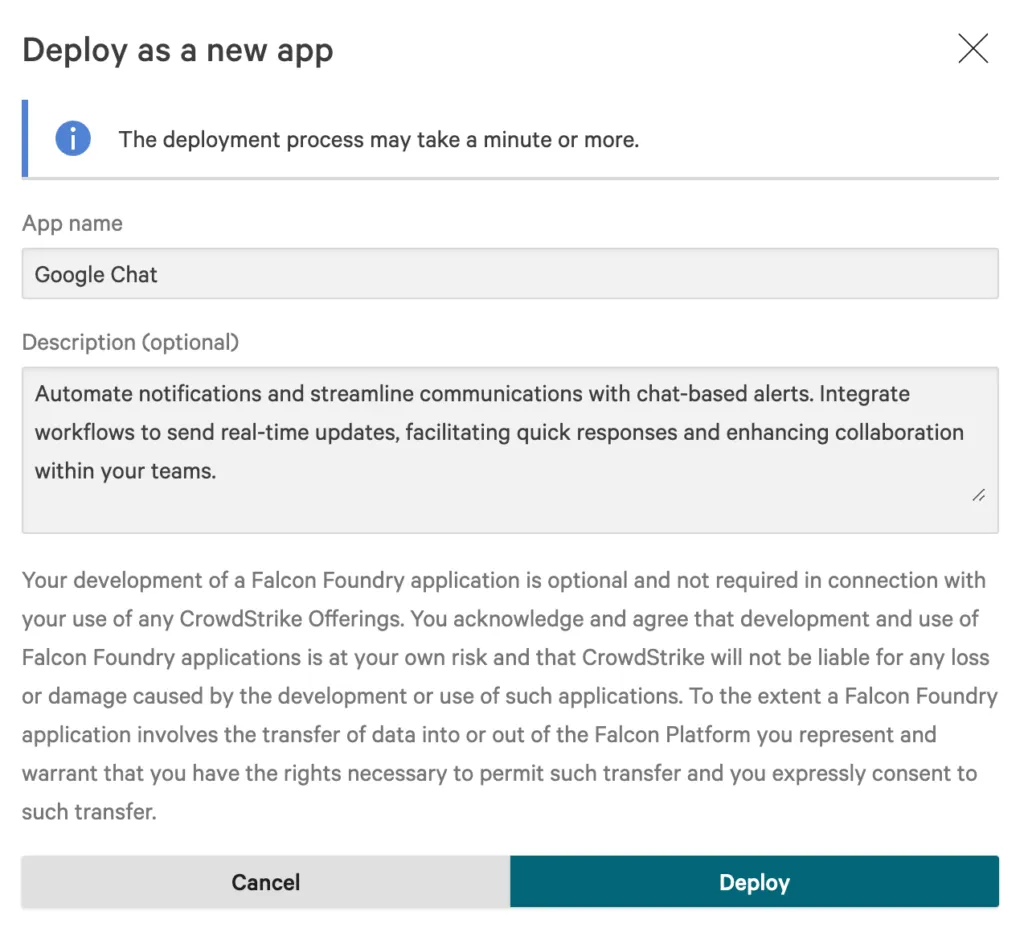
Click Deploy again.
If you get an error about the app already existing, someone has already deployed this template to your CID. Change the name to continue.
Step 3: Release the App
Section titled “Step 3: Release the App”When deployed, you’ll see the App overview with integrations and authorization. Click Release.
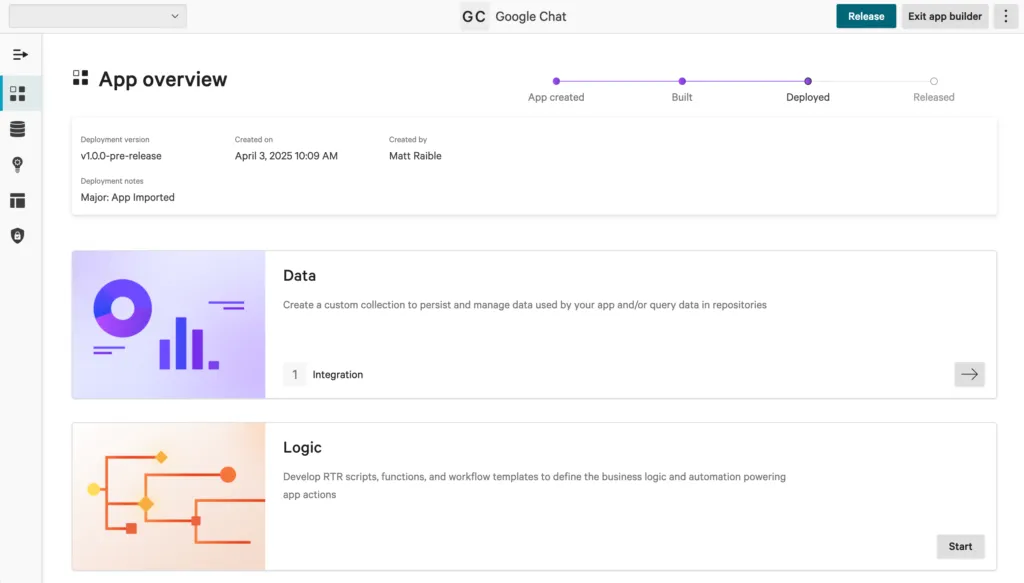
Enter:
- Change type:
Major - Release notes:
First release of Google Chat
Step 4: Install the App
Section titled “Step 4: Install the App”Click View in App catalog, then Install now. Accept the permissions (Api-Integrations: read, write).
Configure the Google service account:
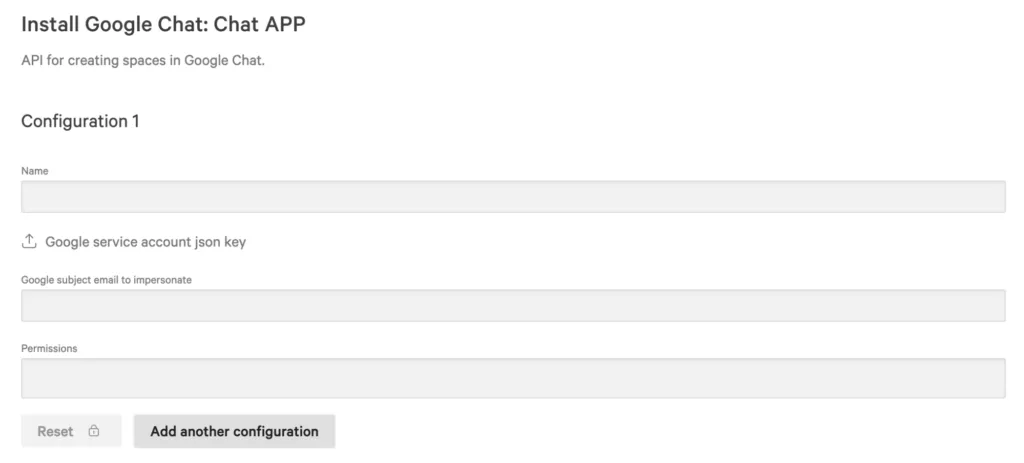
Upload the JSON key file, add all available permissions, and configure:
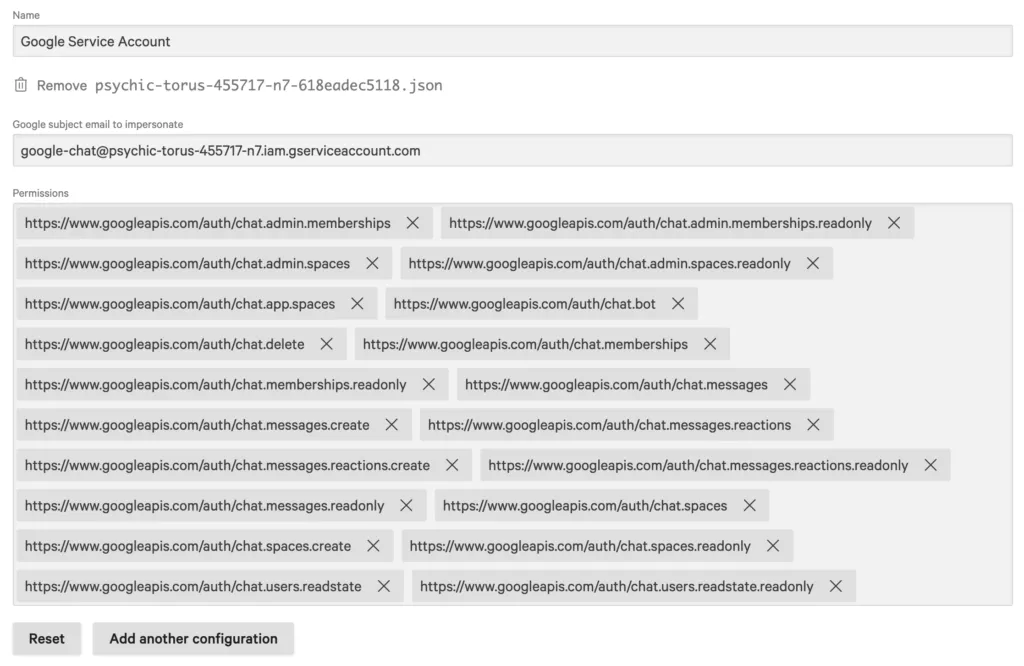
Click Install app.
Step 5: Test the Integration
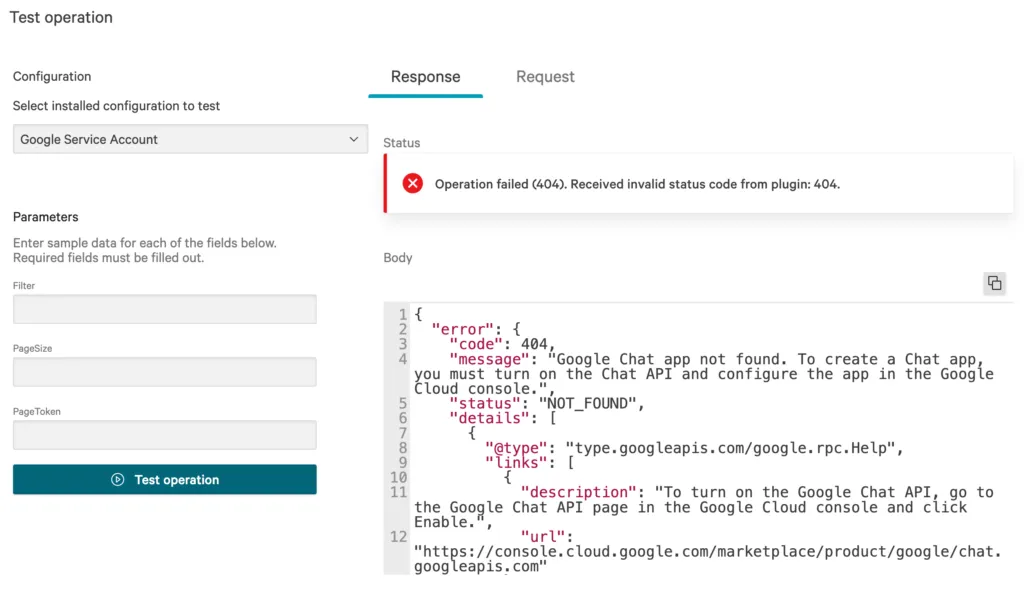
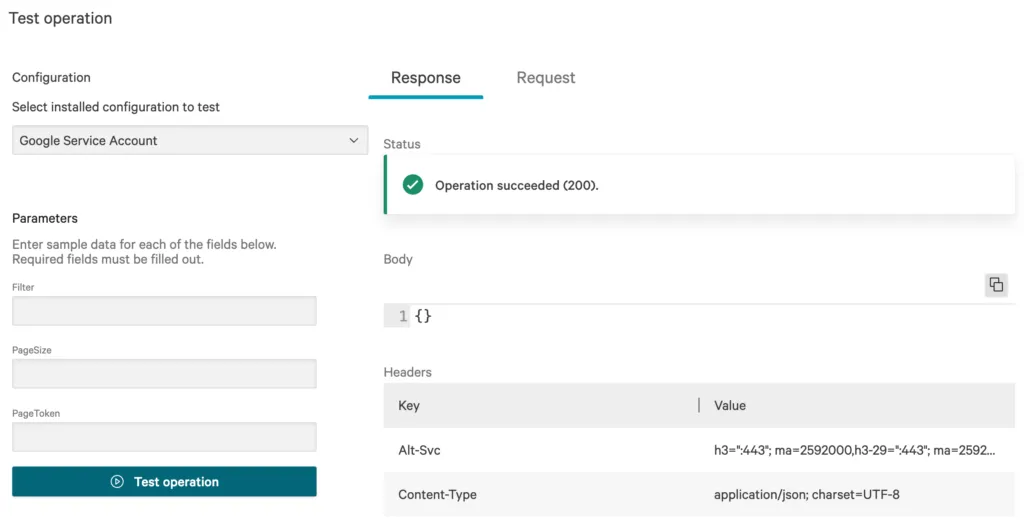
Section titled “Step 5: Test the Integration”Go to Foundry > App manager and select Edit app. Click the Integrations arrow, select Chat APP, search for “space list”, and choose Test. Select the Google Service Account configuration and click Test operation.
If configuration is incorrect, you’ll see a 404:
After fixing the configuration, you should see a successful response:
Use in Fusion SOAR Workflows
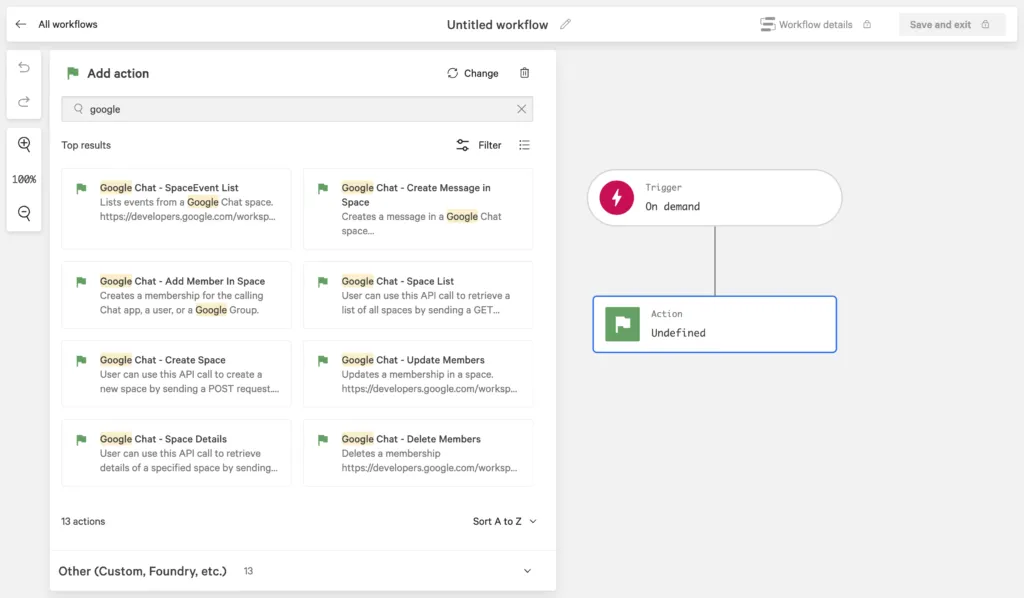
Section titled “Use in Fusion SOAR Workflows”Go to Fusion SOAR > Workflows and create a new workflow. Select Create workflow from scratch, choose On demand for the trigger, then add an action and search for “google”. The Google Chat actions are available:
Store Apps vs. App Templates
Section titled “Store Apps vs. App Templates”| Feature | App Templates | CrowdStrike Store Apps |
|---|---|---|
| Source code visible | Yes — fully editable in Foundry | No — closed source |
| Modifiable | Yes — change integrations, add dashboards, functions | No — use as-is |
| Available in Content Library | Yes | No (installed from App Catalog) |
| Actions shared with SOAR | Yes — customizable subset | Yes — default set |
| Syncable to local CLI | Yes — foundry apps sync | No |
Next Steps
Section titled “Next Steps”- Creating Apps — Learn about all app creation methods
- App Catalog — Explore available apps and templates
- Workflow Templates — Build automated workflows with your new integration